
How to watermark photos: a quick and easy way

We at Spicy sure don’t walk on water,
but now we’ve learned how to mark on water,
so to speak.
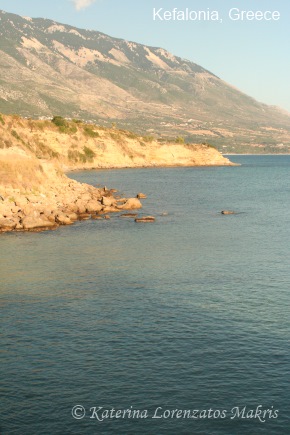
Favorite swimming spot
Agio Thoma cove with Mt. Aenos beyond
Village of Karavados
Island of Kefalonia, Ionian Sea, Greece
by Katerina Lorenzatos Makris ~
Milestone: learned how to watermark photos! It’s a useful trick for anyone doing online photojournalism about animals or any other topic, making it a little more difficult for the less than scrupulous folks out there to copy and use our pics as their own. Not foolproof, but better than nothin’.

And he does ears too!
Have been trying to figure out how to watermark furrrrever. Followed all the instructions found on the Internet. No go.
Finally broke down and emailed an S.O.S. to The Saint, my own personal in-house tech geek—um, I mean awesome computer wizard. (Hear that, honey?) He gave it a try and about twenty minutes later sent back the detailed, customized how-to that you’ll find below.
My reply? Ooooh yeah, talk nerdy to me, beh-beh.
Nothing hotter than a knight in shining pixel armor who slashes paths through the Land of Tech, just for me.
Quick, easy way to watermark photos in Paint.net, brought to us by The Saint, a.k.a. Sir Helpsalot:
1) Bring up photograph in Paint.net.
2) Bring up “Colors” palette via F8 button on your keyboard.
3) Select “Text” tool (found under “Tool”).
4) Change font to a bigger font as desired, probably between 48 to 200+ point.
5) Change color as desired via Text tool.
6) Adjust transparency as desired via Transparency slider on Colors palette.
7) Enter desired text, move around to desired spot on photo.
8) For watermark, create desired copyright text with special symbol in a Word document, or use this:
© Katerina Lorenzatos Makris or © Spicy Stories Save Lives.
9) Don’t click away from text box until you’re satisfied with how it looks.
10) Use Move button to move text to desired spot on image.
11) Use “Save As…” to create new name for file and store it in folder of your choice.
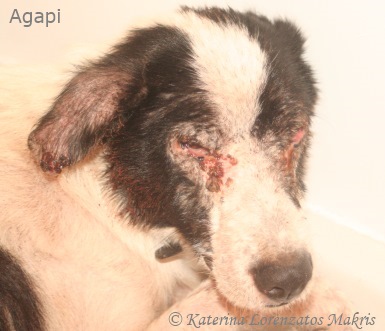
Horrible lesions on face and eyes dripped blood
down to his cheeks and shoulders…
a living nightmare for this angel
And presto chango! Watermarked!
Incidentally, the photo above of Agio Thoma cove was taken just a few hours before the rescue of ill dog Agapi off the streets of another village, an experience that turned my life upside down. But that’s a different story, which you can read about here.
For more writing tips and animal adventures please FOLLOW Spicy Stories Save Lives by clicking the ‘SUBSCRIBE’ button above. You’ll receive email notifications of our new articles. We will NEVER give your email address to anyone else. And it’s free!
Spicy Stories Save Lives proudly sponsors needy animals in the U.S. and around the world.
For example we help Kefalonia Animal Trust (KATs) provide free spay/neuter for hundreds of animals per year, which is one of the best ways to prevent the abandonment and misery of puppies like Noah and Kyla. Please give to KATs via PayPal or bank transfer. Spay/neuter and education are the animals’ best hope for a better future.
Also please consider Animal Rescue Kefalonia (ARK), another group on the island who run a shelter and work miracles with terribly few resources.
Spicy Stories Save Lives and the author of this article have no affiliation with the rescue groups mentioned above, other than as a friend, volunteer, and donor.
 Seen our book? Your Adopted Dog: Everything You Need to Know About Rescuing and Caring for a Best Friend in Need, by Shelley Frost and Katerina Lorenzatos Makris, available through Amazon.com.